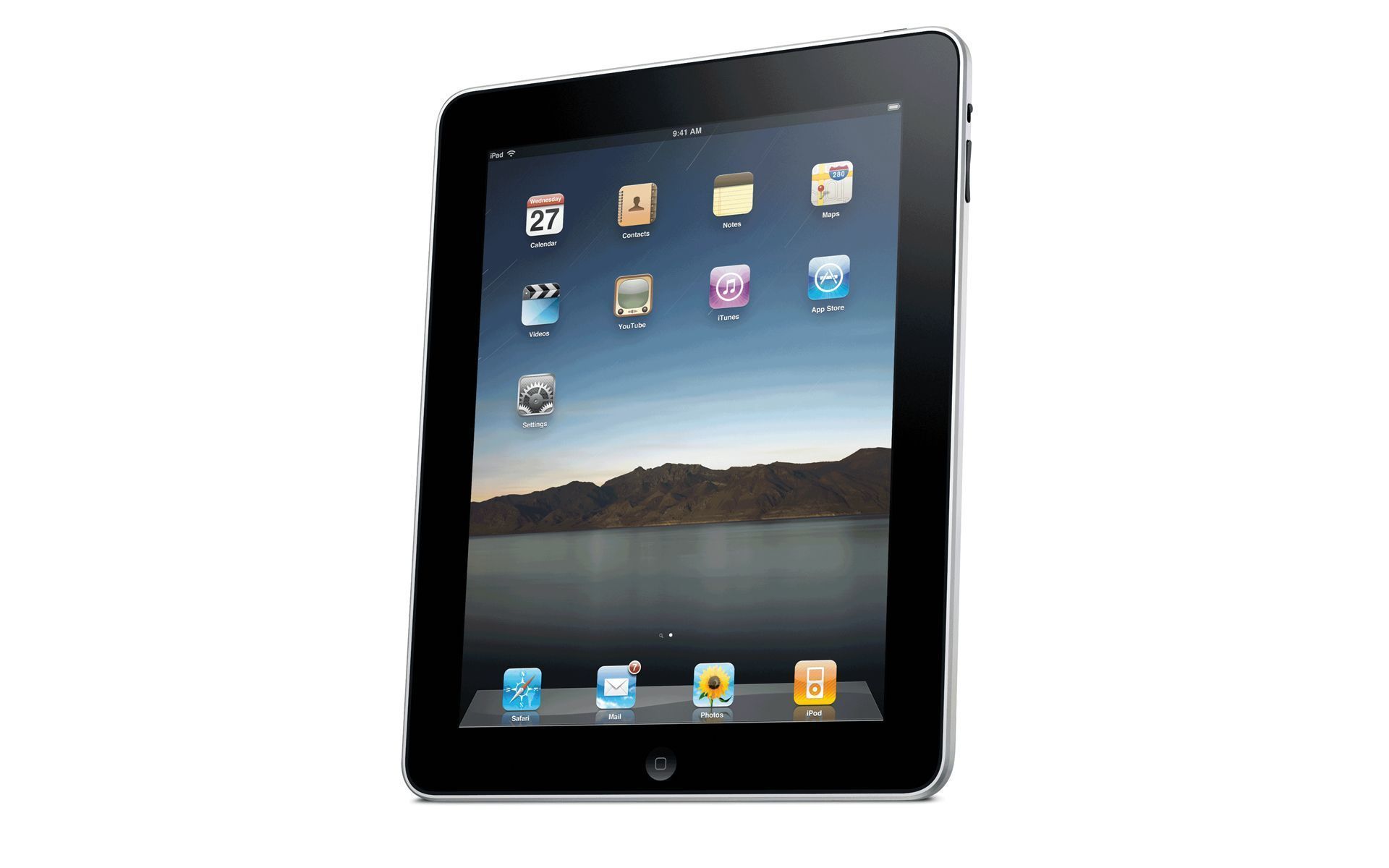
As I write this, I'm reminded of my early days in teaching when I was lucky to have one computer in my classroom. Although we've come well past the days of the one computer classroom, I now find myself trying to troubleshoot how to use my
one iPad in the classroom. Here are some ways I've begun using it with my 24 students:
- Small group instruction-There are countless apps that can be downloaded for free or at very little cost that are beneficial for a small group of 4-6 students to work on together. During my small group math instruction, I've used Coin Math and Math Drills Lite. The children at the small group table take turns (round-robin style). While one child answers the question/problem on the iPad, the others work it on white boards or with money manipulatives. The iPad gets passed around the table in a clockwise motion and we continue this until everyone has had at least 2 turns.
- Paired with Document Camera-I'm fortunate enough to have a Promethean ActiView camera in my room, so many times, I've simply placed my iPad under the document camera and projected the image onto our ActivBoard. One or more students can take turns clicking the iPad. I especially like to show BrainPop's featured movie using the BrainPop app. I've also used Grammar Jammers in this way.
- As a Center Activity-If it's not being used with small groups (or maybe after we've finished), sometimes I allow small groups of students to take turns playing games on the iPad in groups of 2-4. (I love this idea for school-purchased iPads, but as the one I have is my personal iPad, I do this sparingly). Some of the apps I've used in this way are Crazy Tangram and Rocket Math.
- As an Interactive Slate-With the Splashtop app ($4.95), I can control my computer with my iPad. This allows me to walk around the room and use my iPad as an interactive slate. Instead of having students come to the board to click, drag, write, ect...They can do the same things from their seats on my iPad! This allows for even more interactive lessons because of the time efficiency. Let me explain...previously if a page on my flipchart lesson called for something to be revealed by clicking, I found that having a student walk up to the board, click the object, then walk back was not very efficient and slowed down the momentum of the lesson. Therefore, I simply clicked it and moved on. Now, I can give that control back to the students as I move around the classroom.
- As a Student Response System-With Promethean's free ActivEngage app, students can respond to questions using the iPad, rather than ActiVotes, ActivExpressions, or other mobile devices. ActivEngage works right alongside the other devices and groups of 2-4 students can "share" the iPad when choosing their answer. One desk grouping could use it (3 desks are in a group in my room), then pass it to the next group for the next question. This allows for more active engagement and collaboration. It reminds me of the "Think Pair Share" strategy we use in reading. I've yet to try this out in my classroom, but I've explored the app and this is definitely on my To-Do List.
I'd love to hear how you're using iPads in your classroom!


I love your ideas in this post! Some of the apps I knew while others were new to me. I use my iPad a lot for small groups and center time. Instead of a doc camera, I bought a VGA cable that attaches to my projector. Splashtop absolutely amazes my kids!
ReplyDeleteHow much was your cable and how long is it?
ReplyDeleteWe pay around $35 AUD and they are about 1m long usually. I am not sure if there are a variety of lengths but you could connect to a usb extension.
ReplyDeleteGreat ideas! Just got two iPads at our school and investigating how to use them. Keen to investigate how to use them as slates and control what's going on on the smartboard. Bit confused by some of the forums giving different advice though.
ReplyDeleteThanks, Ben! I use the Splashtop app to control my whiteboard. I've had no trouble with it, although some of my coworkers who have older computers complain that when splashtop is running, the cursor blinks continually.
ReplyDeleteI have tried splash top and it continued to lose connection so I now use doceri
ReplyDeleteThanks, Linda. That's a great tip for those having trouble with splashtop. Some of my coworkers are having that issue, so I'll pass this along!
ReplyDeleteThank you for the wonderful ideas and apps! I wanted to also note to the SmartBoard users that SMART Technologies released an iPad app called Bridgit that will sync to your smartboard and can be used as a wireless slate.. and its free ;)
ReplyDeleteThank you for the fantastic ideas! I, too, teach in a one-iPad classroom, and it can be quite frustrating! This past year, two of my students had their own personal devices which they brought in to school daily. I was able to utilize the two iPads from my students, my own iPad, and a borrowed one from another teacher on my team to complete group activities (my fifth graders LOVE using Toontastic). However, I know that my upcoming class may not be as blessed with expensive personal devices and parents brave enough to allow them to bring the iPads into school! I had started to get nervous as to how I was going to utilize my single iPad, but your post has certainly given me some specific and valuable ideas. I am especially interested in the ActivEngage app. I look forward to trying it out this summer with my ActivBoard.
ReplyDeleteAre you familiar with use of an iPad in PE classes? I would love to incorporate more technology in my PE class.
ReplyDeleteTaraB, the Bridgit app looks like it's used to join videoconferences that would present on the smartboard. How do you use it as a remote slate?
ReplyDeleteI use Splashtop and have no problems with it. I love having FLASH programs "run" on my iPad, too, when I connect the iPad to my MacBook.
Should I download splashtop2 or splashtop xdisplay?
ReplyDeleteشركة تنظيف موكيت بجدة
ReplyDeleteشركة تنظيف شقق بجدة
شركة تنظيف فلل بجدة
كشف تسربات المياة بجدة
شركة تنظيف خزانات بجدة
نقل عفش جدة
شركات تنظيف المنازل في جدة
شركة تنظيف بجدة
شركات رش المبيدات الحشرية بجدة
شركات مكافحة الحشرات في جدة
عزل وتنظيف الخزانات
خدمات التسليك والتسربات
نقل وتخزين الاثاث
مكافحة الحشرات ورش المبيدات
خدمات التنظيف
شركات مكافحة الحشرات فى الرياض
ReplyDeleteافضل شركة مكافحة حشرات بالرياض
شركة مكافحة حشرات بالرياض
شركة تنظيف بيوت بالرياض
شركة نقل اثاث بالرياض
افضل شركات نقل العفش بالرياض
افضل شركات نقل العفش بالرياض
شركة عزل خزانات بجدة
شركة تسليك مجارى بجدة
شركة تنظيف مسابح بجدة
شركة تنظيف مجالس بجدة
شركة تنظيف بجدة
ReplyDeleteشركات رش المبيدات الحشرية بجدة
شركة مكافحة حشرات جدة
شركات نظافه فى جدة
كشف تسربات المياه بالرياض
شركات كشف تسربات بالرياض
شركة عزل اسطح بالرياض
شركات عزل مائي
شركة عزل خزانات بالرياض
شركات نقل العفش بالرياض
شركة تنظيف منازل بالرياض
شركة تخزين اثاث بالرياض
افضل شركة تنظيف خزانات
شركات نظافه فى جدة
ReplyDeleteكشف تسربات المياه بالرياض
شركات كشف تسربات بالرياض
شركة عزل اسطح بالرياض
شركات عزل مائي
شركة عزل خزانات بالرياض
شركات نقل العفش بالرياض
شركة تنظيف منازل بالرياض
شركة تخزين اثاث بالرياض
افضل شركة تنظيف خزانات
احسن شركات تنظيف في الرياض
ReplyDeleteشركة تنظيف شقق بالرياض
شركة مكافحة الحشرات بالرياض
شركة تنظيف فلل بالرياض
شركة تنظيف موكيت بالرياض
شركه تنظيف خزانات بجدة
شركات تنظيف خزانات بالرياض
شركات نظافه بالرياض
شركة تنظيف بجدة
شركات رش المبيدات الحشرية بجدة
شركة مكافحة حشرات جدة
ReplyDeleteHello! I just want to offer you a huge thumbs up for the excellent information you have got here on this post. I am coming back to your blog for more soon.
Cheers,
http://www.prokr.com/blog/
http://www.albyaan.com/
http://www.elbassma.net/
http://www.prokr.com/furniture-moving-company-riyadh/
http://www.prokr.com/cleaning-company-riyadh/
http://www.prokr.com/water-leaks-detection-isolate-company-riyadh/
i like your blog and your posts
ReplyDeleteشركة تنظيف بجدة
شركة نقل عفش بجدة
مكافحة حشرات بجدة
شراء اثاث مستعمل بجدة
شركة نظافة بالدمام شركة الروضة
ReplyDeleteشركة نظافة بالدمام
شركة تنظيف بالرياض
شركة
تنظيف بجده
شركة تنظيف بابها
شركة رش حشرات بالدمام
good post
ReplyDeleteكشف تسربات المياة بجدة
شركة كشف تسربات بجدة
كشف تسرب المياة بجدة
شركة عزل بجدة
شركة تنظيف بالرياض
ReplyDeleteشركة تنظيف شقق بالرياض
شركة تنظيف فلل بالرياض
شركة تنظيف مجالس بالرياض
شركة تنظيف خزنات بالرياض
ReplyDeleteشركة مكافحة حشرات بالرياض
nice post
ReplyDeleteكشف تسربات المياه بالرياض
شركة كشف تسربات بالرياض
كشف تسرب المياه بالرياض
شركات العزل بالرياض
شركة عزل بالرياض
عزل الاسطح والخزانات بالرياض
تنظيف خزانات بالرياض
غسيل خزانات بالرياض
تسليك مجارى بالرياض
شفط بيارات بالرياض
ooooooh Really that ideas .. i really need to do alot of things in fb groups something like that apps will encourage me more
ReplyDeleteThanks alot
jeddah transfer furniture company , jeddah cleanning tanks company , jeddah pest control company
Very beautiful publication Thank you
ReplyDeleteشركة نقل العفش بجدة
شركات نقل عفش بالمدينة المنورة
شركة نقل عفش بجازان
شركات نقل عفش
شركات كشف تسربات المياه
شركات نقل الاثاث بمصر
شراء الاثاث المستعمل
شركات مكافحة الحشرات
اليكم الان من خلال شركة نقل اثاث مكة افضل خدمات نقل الاثاث وتخزينة تعرفوا على الخدمات المتنوعه التى توفرها من خلال مؤسسة الاخلاص والامانة .
ReplyDelete0550018083 _ 0565277186
http://goo.gl/c5hwrU
الان تعلموا طريقة عمل كيكة التمر بالتفصيل وخطوه بخطوة من خلال موقع باتية وانترية للطبخ والحلويات , للتفاصيل زوروا هذا الموقع الان .
ReplyDeletehttp://www.pntre.com/how-amel-dates-cake/
للحصول على خدمات صيانة شارب المتعددة زوروا هذا الموقع الخاص بمركز صيانة شارب المعتمد , زوروا هذا اللينك الان .
ReplyDeletehttp://www.maintenanceg.com/Sharp-Agent-Service-Egypt.html
تمتعوا الان بأرخص اسعار شركة كشف تسربات بالرياض من خلال مؤسسة التفوق .
ReplyDeleteشركة تنظيف بالطائف بيت العز0507779248
ReplyDeleteعزيزى العميل مع كثرة الشركات فى المملكة العربية السعودية ازدادت اهمية تميز افضل شركة تنظيف بالطائف عن غيرها من الشركات لان مع الكثرة وانتشار شركات النظافة فالعملاء اصبحوا يتطلعون الى الافضل فى الخدمة والمناسبة فى الاسعار
شركة تنظيف ستائربالطائف
شركة تنظيف شقق بالطائف
شركة تنظيف سجاد بالطائف
تنظيف فلل بالطائف
شركة تنظيف فلل بالطائف
تنظيف شقق واستراحات بالطائف
شركة تنظيف شقق واستراحات بالطائف
تنظيف اثاث المنازل بالطائف
تنظيف بالبخار بالطائف
شركة تنظيف بالبخار بالطائف
شركة تنظيف ستائر بالبخار بالطائف
شركة تنظيف مجالس بالبخار بالطائف
شركة تنظيف كنب بالبخار بالطائف
شركة تنظيف سجاد بالبخار بالطائف
شركة تنظيف موكيت بالبخار بالطائف
شركة تنظيف مفروشات بالبخار بالطائف
شركات التنظيف بالبخار بالطائف
شركة مكافحة حشرات بالطائف بيت العز 0507779248
ReplyDeleteشركة مكافحة حشرات بالطائف قادره على القيام باعمال المكافحة والقضاء على اى نوع من الحشرات بالاعتماد على احدث الالات والماكينات التى تقوم بالوصول الى اصعب الاماكن التى من الممكن ان يتواجد بيها الحشرات
شركة رش مبيدات بالطائف
شركة مكافحة النمل الابيض بالطائف
شركة مكافحة الفئران بالطائف
شركة عزل خزانات بالطائف
شركة كشف تسربات بالطائف
كشف تسربات بالطائف
شركة نقل عفش بمكة
شركة نقل اثاث بمكة
شركة تخزين اثاث بمكة
شركة نقل عفش بالطائف
شركة نقل اثاث بالطائف
شركة تنظيف بمكة توب كلين 0549800078
ReplyDeleteتنظيف بمكة
شركة تنظيف بمكة
شركة تنظيف شقق بمكة
شركة تنظيف منازل بمكة
شركة تنظيف بيوت بمكة
شركة تنظيف فلل بمكة
شركة تنظيف مجالس بالبخار بمكة
تنظيف مجالس بمكة
تنظيف ستائر بالبخار بمكة
شركة تنظيف ستائر بمكة
تنظيف خزانات بمكة
شركة تنظيف خزانات بمكة
شركة غسيل خزانات بمكة
تنظيف بالطائف
شركة تنظيف بالطائف
شركة تنظيف شقق بالطائف
شركة تنظيف منازل بالطائف
شركة تنظيف بيوت بالطائف
شركة تنظيف فلل بالطائف
شركة تنظيف مجالس بالبخار بالطائف
تنظيف مجالس بالطائف
تنظيف ستائر بالبخار بالطائف
شركة تنظيف ستائربالطائف
تنظيف خزانات بالطائف
شركة تنظيف بجدةالدانة كلين
ReplyDelete0508554570
تنظيف بجدة من اهم الخدمات التى تقدمها
شركة تنظيف بجدة
دة تقدم لكل عملائها افضل خدمات التنظيف فى جدة حيث تنتشر فروعها فى كثير من مناطق المملكة حيث تقدم الدانة كلين كل انواع التنظيف (تنظيف البيوت –والشركات – والشاليهات –والمستشفيات –شركة تنظيف منازل بجدة – القصور – تنظيف الخزانات – والبيارات كنب – مجالس ) وغيرها
شركات النظافة بجدة
شركة تنظيف بجدة
شركة تنظيف بيوت بجدة
شركة تنظيف شقق بجدة
شركة تنظيف منازل بجدة
شركة تنظيف فلل بجدة
شركة تنظيف بالبخار بالطائف الدانة كلين 0508554570 - 0508554217
تنظيف بالبخار بالطائف من اجود انواع التنظيف حيث انتشر فى الاونة الاخيرة التنظيف بالبخار وقد اثبت البخار فاعلية اكيدة فى التنظيف ولكن لعتقد الناس ان التظيف بالبخار له اضرار كثيرة اكبر من الفوائد ولكن سوف تخبركم الدانة شركة تنظيف بالبخار بالطائف عن فوائد البخار فى الفقرة القادمة وتقدم الدانة كلين التنظيف لجميع المفروشات بالبخار شركة تنظيف ستائر بالبخار بالطائف ,تنظيف سجاد بالبخار بالطائف , تنظيف مجالس بالبخار بالطائف
شركة تنظيف بالطائف
شركة تنظيف شقق بالطائف
شركة تنظيف فلل بالطائف
شركة تنظيف بالبخار بمكة الدانة كلين 0508554570 - 0508554217
شركات النظافة بمكة
شركة تنظيف بمكة
شركة تنظيف بيوت بمكة
شركة تنظيف شقق بمكة
شركة تنظيف منازل بمكة
شركة تنظيف فلل بمكة
شركة تنظيف سجاد بمكة
شركة تنظيف كنب بمكة
شركة تنظيف خزانات بمكة الدانة كلين 0508554570 - 0508554217
ReplyDeleteشركة غسيل خزانات بمكة
شركة تنظيف خزانات بمكة
تنظيف خزانات فى مكة
تنظيف خزانات بمكة
شركة غسيل خزانات بمكة
شركة تنظيف خزانات بجدة الدانة كلين 0508554570 - 0508554217
شركة غسيل خزانات بجدة
تتشرف بتقديم خدمتها لحضراتكم على مدار اليوم حيث يكون فريق
العمل جاهز لتلقى طلباتكم وعند اتصالكم ترسل الشركة مندوبا لمعرفة سبب المشكلة
لان من المعروف ان جميع الاعمال التى تخص الخزانات من تنظيف خزانات وصيانتها وتعقيمها
شركة تنظيف خزانات بجدة
تنظيف خزانات فى جدة
تنظيف خزانات بجدة
شركة عزل خزانات بجدة
شركة تنظيف خزانات بالطائف الدانة كلين0508554570 - 0508554217
شركة تنظيف خزانات بالطائف
شركة تنظيف خزانات فى الطائف
شركة غسيل خزانات بالطائف
شركة عزل خزانات بالطائف
شركة تنظيف بالاحساء زهرة الخليج
ReplyDeleteشركات تسليك المجارى بالاحساء
افضل شركة تسليك مجارى بالاحساء
تسليك مجارى بالاحساء
افضل شركة تنظيف فى الاحساء
شركة تنظيف بالاحساء
شركة تنظيف شقق بالاحساء
تنظيف منازل بالاحساء
شركة تنظيف بالدمام زهرة الخليج
شركة تنظيف شقق بالدمام
شركة تنظيف مجالس بالدمام
شركة تنظيف خزانات بالدمام
شركة تسليك مجارى بالدمام
شركة غسيل خزانات بالدمام
شركة تنظيف فلل بالدمام
شركة تنظيف وشفط بيارات بالدمام
شركة مكافحة حشرات بمكة الهدى 0506026693
ReplyDeleteشركة مكافحة حشرات بمكة
مكافحة حشرات بمكة
شركة رش حشرات بمكة
شركة رش مبيدات بمكة
شركة مكافحة النمل الاسود بمكة
شركة مكافحة النمل الابيض بمكة
شركة مكافحة الفئران بمكة
شركة مكافحة الصراصير بمكة
شركة مكافحة البق بمكة
شركة مكافحة العتة بمكة
شركة مكافحة الريبة بمكة
شركة تنظيف خزانات بمكة الهدى 0506026693
شركة غسيل خزانات بمكة
شركة تنظيف خزانات بمكة
تنظيف خزانات فى مكة
تنظيف خزانات بمكة
شركة غسيل خزانات بمكة
شركة تعقيم خزانات بمكة
شركة نقل اثاث بمكة الهدى 0506026693
شركة نقل اثاث بمكة
شركة نقل عفش بمكة
نقل اثاث بمكة
نقل عفش بمكة
شركة تخزين اثاث بمكة
ReplyDeleteشركة تنظيف بمكة الهدى 0506026693
شركات النظافة بمكة
شركة تنظيف بمكة
شركة تنظيف بيوت بمكة
شركة تنظيف شقق بمكة
شركة تنظيف منازل بمكة
شركة تنظيف فلل بمكة
شركة تنظيف سجاد بمكة
شركة تنظيف كنب بمكة
شركة نظافة بمكة
شركات تنظيف المنازل بمكة المكرمة
شركة تنظيف موكيت بمكة
شركة تنظيف مجالس بمكة
شركة تنظيف ستائر بالبخار بمكة
شركة تنظيف منازل بمكة
شركة تنظيف بالبخار بمكة الهدى 0506026693
شركة تنظيف ستائر بالبخار بمكة
شركة تنظيف مقروشات بمكة
شركة تنظيف بالبخار بمكة
شركة تنظيف مجالس بالبخار بمكة
شركة تنظيف موكيت بالبخار بمكة
شركة تنظيف اسطح بالبخار بمكة
شركة تنظيف شقق بمكة الاميرة كلين 0551365197
ReplyDeleteشركة تنظيف منازل بمكة
شركة تنظيف فلل بمكة
شركة تنظيف سجاد بالبخار بمكة
شركة تنظيف كنب بمكة
شركة نظافة بمكة
شركات تنظيف المنازل بمكة المكرمة
شركة تنظيف موكيت بمكة
شركة تنظيف مجالس بمكة
تنظيف خزانات فى مكة
تنظيف خزانات بمكة
شركة تعقيم خزانات بمكة
شركة عزل خزانات بمكة
شركة رش حشرات بمكة
شركة رش مبيدات بمكة
شركة مكافحة النمل الاسود بمكة
شركة مكافحة النمل الابيض بمكة
شركة مكافحة الفئران بمكة
شركة مكافحة الصراصير بمكة
شركة مكافحة البق بمكة
شركة تنظيف بجدة بيجات كلين 0563019997
ReplyDeleteتفتخر شركات تنظيف بجدة باستخدام امهر وافضل الفنيين فى تنظيف المنازل والبيوت والفلل والقصور ومكافحة الحشرات وكذلك تقدم خدمات كثيرة ويشمل تنظيف الواجهات الزجاجية
شركة تنظيف بالبخار بجدة
تنظيف بالبخار بجدة
شركة غسيل بالبخار بجدة
شركة مكافحة الحشرات بجدة بيجات كلين 0563019997
الان مع شركة مكافحة حشرات بجدة وداعا لجميع انواع
الحشرات سواء كانت قارضة او طائرة او زاحفة المعروف ان الحشرات فى المنازل او البيوت او المصانع من الاشياء التى تسبب ضررا كبير
شركة مكافحة حشرات بجدة
شركة نقل عفش بجدة بيجات كلين 0563019997
يحتاج الانسان دائما للاستعانة بشركة نقل عقش موثوق فيها للقيام عنه بنقل اثاث ومتعلقات من مكان لاخر وقد يتطلب احيانا تخزين الاثاث والمتعلقات لفترة ما
شركة نقل عفش بجدة
شركة نقل اثاث بجدة
شركة تخزين اثاث بجدة
شركة تغليف عفش بجدة
https://www.bejatclean.com/%D8%B4%D8%B1%D9%83%D8%A9-%D9%86%D9%82%D9%84-%D8%B9%D9%81%D8%B4-%D8%A8%D8%AC%D8%AF%D8%A9
مظلات وسواتر المملكة 0535990488
ReplyDeleteدعونى اعرفكم بمؤسسة مظلات وسواتر المملكة التى تتميز بالامانة والمصداقية فى العمل مما جعلها الاولى بالرياض فى مجال اعمال الحدادة حيث انها تقدم جميع أعمال الحدادة بجودة عالية فنقدم جميع أنواع المظلات من مظلات مسابح ومظلات سيارات ومظلات حدائق ومظلات مدارس ومظلات منازل, مظلات فلل فاذا كنت تحتاج عزيزى العميل مظلة لمسبحك او سياراتك فلا تتردد فقط اتصل بنا
مظلات
مظلات وسواتر
سواتر ومظلات
مظلات مدارس
مظلات مسابح
مظلات بولى ايثلين
سواتر
سواتر حديدية
سواتر خشبية
مظلات وسواتر حميان 0535990488
تقدم لكم مؤسسة حميان تصميمات رائعة من المظلات والسواتر بجميع انواعها
مظلات السيارات
مظلات حدائق
مظلات مدارس
مظلات فلل
مظلات مسابح
مظلات بولى ايثلين
مظلات وسواتر
سواتر ومظلات
سواتر
شركة تنظيف بالمدينة المنورة المشرق كلين 0538993522
ReplyDeleteعزيزى العميل مع كثرة الشركات فى المملكة العربية السعودية ازدادت اهمية تميز
شركة تنظيف بالمدينة المنورة
عن غيرها من الشركات لان مع الكثرة وانتشار شركات النظافة فالعملاء اصبحوا يتطلعون الى الافضل فى الخدمة والمناسبة فى الاسعار
شركة تنظيف بالمدينة المنورة
شركة تنظيف شقق بالمدينة المنورة
شركة تنظيف عمائر بالمدينة المنورة
شركة تنظيف مطابخ بالمدينة المنورة
شركة مكافحة حشرات بالمدينة المنورة المشرق كلين 0538993522
مع شركة مكافحة حشرات بالمدينة المنورة
ستتخلص تماما من الازعاج المستمر الذى تسببه الحشرات والافات بمختلف انواعها حيث تقدم الشركة خدمات مكافحة الحشرات بكفاءة عاليه وبدقة بالغه تقضى عليها تماما دون رجعه وذلك بفضل فريق العمل الذى تعتمد عليه الشركة
شركة رش مبيدات بالمدينة المنورة
مكافحة حشرات بالمدينة المنورة
مكافحة النمل الابيض بالمدينة المنورة
شركة مكافحة الفئران بالمدينة المنورة
شركة نقل اثاث بالمدينة المنورة المشرق كلين 0538993522
ReplyDeleteعميلنا العزيز نحذرك نحن
شركة نقل عفش بالمدينة المنورة
من شركات النقل غير معروفة الهوية التى انتشرت فى الاونة الاخيرة فشركة المشرق تقدم لكم افضل الخدمات فى نقل الاثاث فهى تمتلك افضل واحسن وسائل النقل مثل نقل اثاث فك اثاث تركيب اثاث رفع الاثاث
شركة نقل اثاث بالمدينة المنورة
نقل اثاث بالمدينة المنورة
نقل عفش اثاث بالمدينة المنورة
شركة تنظيف خزانات بالمدينة المنورة المشرق كلين 0538993522
الجميع لايستغنى عن المياه فهى مصدر الحياة وللحافظ عليها نظيفة نقية لابد من حمايتها عن طريق الخزانات فشركة المشرق أفضل
شركة تنظيف خزانات بالمدينة المنورة
فمعنا لاداعى للقلق من تنظيف الخزانات فنحن
شركة غسيل خزانات بالمدينة المنورة
نقوم بعميلة التنظيف على اكمل وجه
شركة تنظيف خزانات بالمدينة المنورة
شركة غسيل خزانات بالمدينة المنورة
شركة عزل خزانات بالمدينة المنورة
شركة كشف تسربات المياه بالمدينة المنورة
شركة غسيل مجالس بالرياض الشبلان 0554366434
ReplyDeleteتتميز شركتنا شركة تنظيف مجالس بالرياض بتقديم افضل الخدمات فى مجال التنظيف لاننا نستخدم احدث وافضل ماكينات التنظيف بالبخار الساخن غسيل مجالس بالبخار ونعيد اليكم مجالسكم كما لو كانت جديدة
شركة غسيل مجالس بالرياض
شركة غسيل كنب بالرياض
شركة تنظيف انتريهات بالرياض
شركة تنظيف وسط الرياض
http://shiblan-clean.com/%D8%B4%D8%B1%D9%83%D8%A9
شركة غسيل سجاد بالرياض الشبلان 0554366434
الشبلان شركة تنظيف سجاد بالرياض و شركة تنظيف موكيت بالرياض من اكبر شركات غسيل السجاد فى احياء الرياض وضواحيها فالشبلان تصلك اينما كنت شرق الرياض او شمال الرياض
شركة تنظيف موكيت شرق الرياض
غسيل موكيت بالرياض
غسيل موكيت بالبخار
شركات تنظيف الموكيت بالرياض
تنظيف الموكيت فى مكانه
<a href="http://shiblan-clean.com/%D8%B4%D8%B1%D9%83%D8%A9-%D8%BA%D8%B3%D9%8A%D9%84-%D8%B3%D8%AC%D8%A7%D8%AF-%D8%A8%D8%A7%D9%84%D8%B1%D9%8A%D8%A7%D8%B6
شركة غسيل خزانات بالرياض الشبلان 0554366434
ReplyDeleteالشبلان
شركة غسيل خزانات بالرياض
تقدم لكم خدمة تنظيف وغسيل الخزانات باحدث الطرق واقوى المطهرات المستخدمة فى عملية التعقيم لجميع اهل الرياض باسعار تناسب الجميع وذلك لمعرفة الشبلان باهمية ومدى خطورة عدم التنظيف للخزان لان المياه هى مصدر الحياة وبدونها لاتوجد حياة.
شركة غسيل خزانات بالرياض
شركة عزل خزانات بالرياض
غسيل خزانات بالرياض
شركة تنظيف خزانات بالرياض
تنظيف خزانات بالرياض
شركة تنظيف خزانات بالرياض
شركة نقل عفش بالرياض رخيصة الشبلان 055436634
السادة عملائنا الكرام تقدم لكم شركة نقل اثاث بالرياض رخيصة خدمة نقل الاثاث اذا احببتم ان تقوموا بتغير مكان اقامتكم او تم تغير مكان عملكم الى مكان ما داخل المملكة او خارج المملكة وخاصة الرياض او اردت تغير ديكور منزلك والاثاث فانت اذن تحتاج الى شركة نقل عفش بالرياض
شركة نقل اثاث بالرياض
شركة نقل اثاث بالرياض 300 ريال
شركة نقل اثاث بالرياض عمالة فليبنية
شركة مكافحة حشرات بجدةِ السهم الذهبى 0555618545
ReplyDeleteشركة مكافحة حشرات بجدة تساعدك فى القضاء على جميع انواع الحشرات اينما وجدت لانه يمكن باى حال من الاحوال التعايش مع الحشرات فى مكان واحد ابدا
شركة مكافحة فئران بجدة
شركة النمل الابيض بجدة
شركة تنظيف بالبخار بمكة السهم الذهبى 0558842225
شركة تنظيف بمكة ريحت بالك في التنظيف وبتقولك هنظفلك منزلك بالبخارى التنظيف بالبخار غير ضار بالبيئة؛ نظرًا لعدم وجود مواد كيميائية.
شركة غسيل بالبخار بمكة
شركة تنظيف شقق بمكة
شركة تنظيف خزانات بالطائف السهم الذهبى 0555618545
شركة تنظيف خزانات بالطائف تقدم لكم خدمة غسيل وتعقيم الخزانات لان عملية تنظيف الخزانات من الامور الهامة جدا والحيوية أيضا وذلك للحفاظ على الصحه العامة حيث ان المياه هى من اكثر المواد تعرضا للتلوث
شركة غسيل بالبخار بالطائف
شركة تنظيف شقق بالطائف
شركة غسيل سجاد بالرياض الشبلان 0554366434
ReplyDeleteالشبلان شركة تنظيف سجاد بالرياض و شركة تنظيف موكيت بالرياض من اكبر شركات غسيل السجاد فى احياء الرياض وضواحيها فالشبلان تصلك اينما كنت شرق الرياض او شمال الرياض
شركة تنظيف مجالس بالرياض بتقديم افضل الخدمات فى مجال التنظيف لاننا نستخدم احدث وافضل ماكينات التنظيف بالبخار الساخن غسيل مجالس بالبخار ونعيد اليكم مجالسكم كما لو كانت جديدة
شركة غسيل مجالس بالرياض
شركة غسيل كنب بالرياض
تنظيف بالبخار بمكة - عبير مكة -0508034442
ReplyDeleteشركة تنظيف بالبخار بمكة تنظيف بالبخار بمكة عبير مكة تقدم تلك الخدمة لابناء مكة حيث فى الاونة الاخيرة انتشار التنظيف بالبخار بقوة وبفاعلية قوية
شركة تنظيف مجالس بالبخار بمكة
شركة تنظيف موكيت بالبخار بمكة
شركة تنظيف اسطح بالبخار بمكة
تنظيف بمكة - عبيرمكة كلين - 0508034442
تنظيف بمكة تعتبر عبير مكة شركة تنظيف بمكة من افضل الشركات فى مجال التنظيف عبير مكة حيث لديها افضل عمالة مدربة على اعلى مستوى فى التظيف )
شركات النظافة بمكة
شركة تنظيف بمكة
شركة تنظيف بيوت بمكة
شركة تنظيف شقق بمكة
شركة تنظيف منازل بمكة
شركة تنظيف فلل بمكة
شركة تنظيف سجاد بمكة
مكافحة حشرات بمكة - عبيرمكة - 0508034442
مكافحة حشرات بمكة خدمة تقدمها لكم شركة مكافحة حشرات بمكة يبحث كثير من الناس عن طرق مختلفة وكثيرة للتخلص من الحشرات المزعجة والمقززة
مكافحة حشرات بمكة
شركة رش حشرات بمكة
شركة رش مبيدات بمكة
شركة مكافحة النمل الاسود بمكة
شركة تنظيف خزانات بمكة - عبير مكة -0508034442
ReplyDeleteتنظيف وعزل خزانات بمكةبشركة عبير مكة افضل شركة تنظيف خزانات بمكة تسعى دائما الى التطور فى اساليب تنظيف الخزانات حيث تبين اهمية تنظيف خزانات المياة للحفاظ على صحة الافراد نتيجة الامراض التى تحدث نتيجة تلوث مياة الخزانات
شركة غسيل خزانات بمكة
شركة تنظيف خزانات بمكة
جلى بلاط ورخام بمكة - عبير مكة - -0508034442
شركة جلى رخام وبلاط بمكة اذا كنت ممامن يجدون صعوبة فى تنظيف السيراميك او البلاط او الرخام او تنظيف اى بقع قد تتواجد على الارضية او بقا اسمنتية او دهانات
جلى رخام بمعلمين سوريين بمكة
اسعار جلي البلاط في مكة
اسعار جلي الرخام بمكة
تنظيف مسابح وحدائق بمكة
شركة تنظيف مسابح وحدائق بمكة
شركة نقل اثاث بمكة
عبير مكة اكبر الشركات فى المملكة المتخصصة فى جميع خدمات نقل وتغليف وتخزين الاثاث بمكة
شركة نقل اثاث بمكة
شركة نقل عفش بمكة
نقل اثاث بمكة
معلم دهانات بالمدينة المنورة - الصيانة السريعة 05328288008
ReplyDeleteمعلم دهانات بالمدينة المنورة
من امهر الايدى العاملة بهذا المجال اذا كنت ترغب بتجديد دهانات منزلك فلا تحتار اتصل بمعلم دهان بالمدينة المنورة
اعمال صيانة بالمدينة المنورة
مؤسسة الصيانة السريعة
دهان فى المدينة المنورة
سباك بالمدينة المنورة- مؤسسة الصيانة السريعة
0508353932
سباك بالمدينة المنورة يعرفكم بان اعمال سباكة بالمدينة المنورة من المعروف انها كثيرة ومتعددة ومنها الاعمال الداخلية
رقم فنى سباك منازل بالمدينة المنورة
رقم فنى سباك منازل بالمدينة المنورة
سباك بالمدينة المنورة
سباك منازل بالمدينة المنورة
شركة اعمال سباكة بالمدينة المنورة
فنى سباك بالمدينة المنورة
كهربائى بالمدينة المنورة للقيام بجميع اعمال الكهرباء والصيانة المنزلية او بالشركات والمؤسسات والشركات لان مؤسسة الصيانة السريعة حريصة على راحة عملائها فقررناالعمل على راحتكم ابناء المدينة المنورة
مهندس كهرباء بالمدينة المنورة
كهربائى بالمدينة المنورة
فنى كهربائى بالمدينة المنورة
ReplyDeleteافضل شركة نقل اثاث بالمدينة المنورة
لنقل عفشك بامان و راحة بدون اي اضرار فقط استعن بشركة فرسان الخليج
افضل شركة نقل اثاث بالمدينة المنورة لما لدينا من افضل امكانيات من الرافعات و الاوناش
و افضل الفنيين و النجاريين لفك و تركيب العفش بمنتهي الاحترافية بدرن اي خسائر في العفش
شركة فرسان الخليج شركة نقل عفش بالمدينة المنورة تقدم جميع خدمات النقل باقل لااسعار و باعلي جودة و كفاءة
بادروا بالحصول علي افضل العروض و الخدمات من شركة فرسان الخليج افضل شركة نقل اثاث بالمدينة المنورة
نقل عفش بالمدينة المنورة
اتصلوا بنا
0553061333
http://www.forsan-elkhaleg.com/20/Moving-furniture-company-in-Madinah
ReplyDeleteتخزين اثاث بالمدينة المنورة
اذا كنت تبحث عن شركة متخصصة في النقل بالمدينة المنورة لديها افضل النجاريين و الفنيين
في الفك و التركيب و نقل العفش
نحن شركة الندي افضل شركة نقل عفش بالمدينة المنورة
لدينا افضل السيارات المجهزة و المزودة بافضل السائقين المحترفين
شركة الندي تقدم ايضا خدمة تخزين اثاث بالمدينة المنورة علي اعلي مستوي
من المخازن و المستودعات
جميع خدماتنا نقدمها باعلي جودة و اقل سعر
بادروا بالحصول علي خدماتنا و عروضنا بالمدينة المنورة
افضل شركة نقل عفش بالمدينة المنورة
اتصلوا بنا علي
0508726070
http://www.elnadaa.com/652/Moving-furniture-medina
شركة شراء اثاث مستعمل بالرياض والقصيم وجدة
ReplyDeleteيسر شركة المستقبل ان تهتم بكافة الخدمات التى تساعد فى تحقيق اعلى مستوى من الخدمات المطلوبة والمرغوب فية من قبل الكثير من عملائنا فى كل مكان فى المملكة العربية السعودية ، فنحن نهتم باعمال الشراء لاى قطعة من الاثاث المتواجدة التى اصبحت لا فائدة لة او القطع من الاثاث المتهلكة او التى بية اى مشكلة فاذا كنت تعانى من اعمال الشراء والتعرض الى الكثير من المشكلات فعليك ان تتعاون وتتواصل مع شركة المستقبل المميزة فى الشراء والتى تحقق لكم افضل واعلى الاسعار المتواجدة دون ان يتم البخس باسعار الاثاث .
شراء الاثاث المستعمل
الاغراض التى تقوم شركة المستقبل بشراءة
تهتم شركة المستقبل بالتواصل بشكل مباشر بجميع عملاء الشركة والعمل من خلال توفير عدد من الخدمات التى تحقق افضل الطرق فى اعمال الشراء من اهم ما تقوم بيه الشركة الاتى :-
1. 1- التعرف على عدد القطع المراد القيام بشراءة والتعرف على مدى جودة وصلابة والمتانة التى تتميز بية كل قطعة من الاثاث .
2. شركة شراء الاثاث المستعمل بالرياض
3. 2- التعرف على قيمة القطعة حتى يتم تحديد الاسعار وتهتم الشركة باعطاء الاسعار وان يتم المحاسبة على الفور عند القيام بالاتفاق .
4. 3- الاهتمام بكل الالتزامات التى تساعد فى الحصول على اعمال الشراء الى ان تصل الى الحقين الخاص ببيع الاثاث بالرياض .
5. 4- الاهتمام باعمال البيع مرة اخرى عقب ان يتم القيام باعمال الدهانات واعادة التجنيد والاصلاح فى مقابل ارخص الاسعار وارخص من اسعار الاثاث المتواجد فى الاسواق .
6. شراء الاثاث المستعمل بالرياض
تهتم شركة شراء الاثاث المستعمل بالقصيم باعمال الشراء للاثاث المتواجد فى كل مكان فى المملكة من اهم الاشياء التى تقوم بشراءة جميع الاثاث المكتبى – الاثاث المنزلى – الاثاث الفندقى و.....غيرها من الاثاث بالاضافة الى ان الشركة تقوم بشراء غرف النوم – غرف الاطفال – المطابخ – الدواليب – السفرة كاملة بمحتواياتها- الصالون ....وبالاضافة الى القيام باعمال الشراء للاجهزة الكهربائية مثل الثلاجات – الغسالات – التلفزيونات – الشاشات ال سى دى -.... والاهتمام بشراء ايضا كافة المفروشات من السجاد والموكيت والستائر .......وغيرها من الاشياء المتواجدة فى المنازل باكملة ، فلا يتوقف عطاء شركة المستقبل عند حد معين فنسعى الى شراء اى شىء متواجد فى المكان وعليك ان تتواصل مع الشركة بشكل مباشر للقيام بهذه الخدمة الان .
ارقام شراء الاثاث المستعمل
تتميز الشركة بالمصداقية والامانة والتعامل مع كافة عملاء الشركة فى كل مكان من اجل ان يتم توفير الكثير من الخدمات التى تسبب جشع التجار او التخلص من الاثاث فى مقابل اى اسعار متواجدة بهدف التخلص من الفوضى التى يحدثها الاثاث المستعمل المتواجد فى المكان .
شراء الاثاث المستعمل بجدة
شركة المستقبل تتواجد فى اى مكان فى المنطقة الشرقية وجدة واى مكان فى الرياض بهدف تحقيق رغبتكم ومتطلباتكم فى الاثاث المستعمل
ReplyDeleteشركة نقل عفش بالمدينة المنورة
شركة المنزل هى شركة نقل عفش بالمدينة المنورة لدينا العمالة المدربة التى تستخدم اجود السيارات المجهزة التى تقوم بنقل العفش بالمدينة المنورة ولدينا الاوناش والروافع التى تستخدم فى مجال نقل العفش كما اننا لدينا خدمات تخزين الاثاث بالمدينة المنورة وذلك بتوفير المستودعات المجهزة والخالية من الحشرات والقوارض والمؤمنة من السرقة والحريق ونحن نعتمد على احدث نظم تخزين الاثاث ونقدم خدماتنا بأرخص الاسعار .
شركة تخزين اثاث بالمدينة المنورة
http://elmnzel.com/moving-furniture-medina/
The topic, teaching in the one iPad classroom have made me more curious to read your blog, and i can say that you have a way of catching the attention of your readers. Do you know that you can make a great difference in the appearance of your house just by using an Acrylic Orange Leaf Clock. Getting it is easy, you only need to check the link and you will be advised accordingly.
ReplyDeleteتعالوا اعرفوا موديلات تكييف يونيون اير شركة تم انشائها فى مصر عام 1995 وبدات تبحث عن ارضى العميل وتبحث في السوق عن كل ماهو جديد لكي تقدمها للعميل وتسعي دائما للرفاهيه للعميل وانتظاروا مننا كل ماهو جديد
ReplyDeleteمبيعات تكييف يونيون اير
تكييف يونيون اير
اسعار تكييف يونيون اير
تكييف يونيون اير
يونيون اير
تكييف يونيون اير 19058
مبيعات تكييف يونيون اير 19058
تكييفات يونيون اير
مبيعات تكييف يونيون اير
مبيعات تكييف يونيون اير
مبيعات تكييف يونيون اير
مبيعات تكييف يونيون اير
مبيعات تكييف يونيون اير
مبيعات تكييف يونيون اير
مبيعات تكييف يونيون اير
مبيعات تكييف يونيون اير
مبيعات تكييف يونيون ايرمبيعات تكييف يونيون ايرمبيعات تكييف يونيون ايرمبيعات تكييف يونيون اير
This comment has been removed by the author.
ReplyDelete
ReplyDeleteكل هذه الصعوبات أصبحت ماض شركة تنظيف خزانات بمكة أما الآن في نقل العفش من مكان إلي أخر لم يكن بهذه السهولة تمتلك الكثير من الخبراتشركة نقل عفش بمكة الدراية الكامله لكل ما يتعلق شركة تنظيف خزانات بالطائف بمجال نقل الأثاث من الآن لا تحتار و كن مع الأفضل شركة تنظيف بالبخار بالطائف ربما لا نكون الوحيدين بمجال نقل العفش و لكننا بالطبع المميزون شركة تنظيف شقق بالطائف نقدم أفضل و أعلي مستوي خدمة يمكن أن تحصل عليه
إذا كنت تبحث عميلنا العزيز عن رقم أفضل شركة ترميمات في المملكة العربية السعودية،
ReplyDeleteفيمكنك الحصول على أرقامنا من خلال موقعنا والاتصال بنا في أي وقت تريده،
حيث أن لدينا أفضل خدمة عملاء متواجدة على مدار 24 ساعة لتلقي اتصالاتكم وتسجيل كافة طلباتكم والعمل على سرعة تلبيتها،
والقيام بها في أسرع وقت ممكن، وذلك من خلال تبليغ الإدارة بها في أسرع وقت.
ترميم شقق 0534547049
ترميم فلل 0534547049
ترميم منزل 0534547049
ترميم الحمام 0534547049
ترميم البيت 0534547049
ابغي شركة ترميم منازل 0534547049
ترميم حمامات بالرياض 0534547049
ترميم منازل قديمة 0534547049
ترميمات مباني بالرياض 0534547049
ترميم بيوت 0534547049
إذا كنت تبحث عميلنا العزيز عن رقم أفضل شركة ترميمات في المملكة العربية السعودية،
ReplyDeleteفيمكنك الحصول على أرقامنا من خلال موقعنا والاتصال بنا في أي وقت تريده،
حيث أن لدينا أفضل خدمة عملاء متواجدة على مدار 24 ساعة لتلقي اتصالاتكم وتسجيل كافة طلباتكم والعمل على سرعة تلبيتها،
والقيام بها في أسرع وقت ممكن، وذلك من خلال تبليغ الإدارة بها في أسرع وقت.
ترميم شقق 0534547049
ترميم فلل 0534547049
ترميم منزل 0534547049
ترميم الحمام 0534547049
ترميم البيت 0534547049
ابغي شركة ترميم منازل 0534547049
ترميم حمامات بالرياض 0534547049
ترميم منازل قديمة 0534547049
ترميمات مباني بالرياض 0534547049
ترميم بيوت 0534547049
أفضل مراكز التجميل في تركيا
ReplyDeleteمن عمليات التجميل في تركيا عملية تجميل الوجه وهي من العمليات الشائعة جداً والتي كثر الإقبال عليها، ولدينا مقالة كاملة عن أنواع عمليات تجميل الوجه في تركيا يمكنك الرجوع إليها لمعرفة المزيد عن تلك العمليات.
كود خصم ممزورلد
ReplyDeleteكوبون ممزورلد
كوبون خصم ممزورلد
العلاج الطبيعي وشلل الأطفال
ReplyDeleteمصحات التشيك للعلاج الطبيعي
العلاج الطبيعي في التشيك للاطفال
افضل مراكز العلاج في التشيك
عملية التثدي
ReplyDeleteتصغير الثدي عند الرجال
عمليات نحت الجسم في تركيا
ReplyDeleteلقاح موديرنا mRNA-1273
ReplyDeleteشركة فحص فلل
ReplyDeleteشركات نقل الاثاث بالقاهرة الجديدة
ReplyDeleteالمفعول معه
ReplyDeleteصحي جمعية العاصمة
ReplyDeleteWomen's Coats & Jackets in egypt
ReplyDeletequran tutor at home
ReplyDeletewhat is tajweed
ReplyDeleteeasy way to memorize quran
ReplyDeleteسباك صحي فني صحي بالكويت
ReplyDeleteفنى تسليك مجاري
ReplyDeleteالتسويق بالعمولة نون
ReplyDeleteافضل شركة رش دفان بابها
ReplyDeleteنحت الجسم
ReplyDeleteمستلزمات البيبي
ReplyDeletethe iu diet
ReplyDelete"غترة بيضاء"
ReplyDeleteكود خصم نمشي
ReplyDeleteWomen's Coats & Jackets
ReplyDeleteوظائف قطر
ReplyDeleteimportance of dua after eating
ReplyDeleteتاخر الإنجاب لدي السيدات
ReplyDeletefoster care organizations
ReplyDeleteSmm Panel
ReplyDeletesmm panel
İs İlanlari
instagram takipçi satın al
hirdavatciburada.com
Https://www.beyazesyateknikservisi.com.tr
SERVİS
tiktok jeton hilesi
nft nasıl alınır
ReplyDeleteözel ambulans
yurtdışı kargo
minecraft premium
lisans satın al
en son çıkan perde modelleri
en son çıkan perde modelleri
uc satın al
통영출장샵
ReplyDelete거제출장샵
김천출장샵
문경출장샵
상주출장샵
안동출장샵
يمكنك تحميل لعبة جاتا 7 من خلال موقعنا متخصص في كثير من الألعاب يمكنك تحميل لعبة جاتا جميع الإصدارات من خلال الموقع
ReplyDelete
ReplyDeleteشركة نقل اثاث بالرياض
شركة نقل عفش بجدة
شركة كشف تسربات المياه بالرياض
شراء اثاث مستعمل بالرياض
شراء الاثاث المستعمل بجدة
شراء الاثاث المستعمل بالدمام
الحملات الدعائية
ReplyDeleteيوتيوب بريميوم
ReplyDeletelearn quran and arabic online
ReplyDelete
ReplyDeleteسورة
dubai dental hospital
ReplyDeleteمؤسسة التقاعد خدمات المستفيد
ReplyDeleteتركيب غرف نوم بالرياض
ReplyDeleteمكافحة صراصير
ReplyDeleteASNC Nuclear Cardiology Core Curriculum 2023
ReplyDeleteالسلام عليكم هذا مقال رائع في مجال تسليك مجاري الكويت
ReplyDeleteSeniorenumzug
ReplyDeleteسعر عسل السدر
ReplyDeleteمظلات جلسات
ReplyDeleteأنا ممتن جدًا لمؤسسات الإقراض على إعطائي قرضًا بقيمة 5000.00 يورو، لقد كنت مدينًا لسنوات، لذلك أبحث عن قرض بسجل ائتماني صفري وقد ذهبت إلى العديد من المؤسسات المالية للمساعدة ولكن الجميع رفضوني بسبب نسبة ديوني المرتفعة وسجل الائتمان المنخفض، لقد بحثت في الإنترنت ولم أستسلم أبدًا، لقد قرأت وتعلمت عن مؤسسات الإقراض في إحدى مدوناتي، لقد اتصلت بمؤسسات الإقراض عبر البريد الإلكتروني (loancreditinstitutions00@yahoo.com) معتقدًا أن قرضي قد مُنح في بداية هذا العام وعاد الأمل مرة أخرى، ثم أدركت أن شركات الإقراض ليست كلها
ReplyDeleteعلى المدونة مزيفة حقًا لأن جميع ديوني المالية قد تم حلها، والآن لدي قيمة كبيرة جدًا ومشروع تجاري يحسد عليه، لا يمكنني الاحتفاظ بهذا لنفسي لذلك يجب أن أبدأ بمشاركة
هذه الشهادة التي تغير الحياة، يمكنك الاتصال بالسيدة فرانكا سميث عبر البريد الإلكتروني: (loancreditinstitutions00@gmail.com) WhatsApp: +393512114999. أو واتساب: +393509313766.
لماذا تختار شراء أثاث مستعمل بالرياض؟
ReplyDelete>الرياض تشهد حركة سكنية وتجارية نشطة، والكثير من السكان يقومون بتغيير مساكنهم أو مكاتبهم باستمرار، مما يؤدي إلى توفر كميات كبيرة من الأثاث المستعمل المعروض للبيع. ويتميز هذا السوق بالتنوع الكبير في المعروض، من غرف نوم وصالات وغرف طعام، إلى أجهزة كهربائية ومكاتب وتجهيزات مكتبية. ويمكن للمشترين العثور على ماركات معروفة وجودة عالية بأسعار مناسبة جدًا.
إضافة إلى التوفير المالي، فإن شراء اثاث مستعمل بالرياض يُعد خيارًا صديقًا للبيئة، حيث يُسهم في تقليل النفايات وتقليل الحاجة لتصنيع قطع جديدة. كما أن بعض القطع الكلاسيكية أو ذات الطراز العتيق لا تتوفر في الأسواق بسهولة، ويُمكن فقط الحصول عليها عبر سوق المستعمل.
عندما يتعلق الأمر بالحفاظ على مظهر سيارتك وكأنها جديدة، فإن اكستريم نانو يقدم لك أفضل حلول حماية الطلاء بالرياض. نحن نستخدم أحدث تقنيات الحماية لضمان بقاء الطلاء لامعًا ومقاومًا للخدوش والعوامل الخارجية.
ReplyDeleteدائما المؤسسات الكبيره مثل شركه الانجاز تكون حريصه ان تصبح الاسرع
ReplyDeleteوالاكثر كفائه
فى تقديم كل
خدماتها ويمكنك الان ان تودع كل ازمات ومشكلات السباكه
للابد مع سباك شمال الرياض
لاننا لدينا العماله المحترفه
ومعدات السباكه المميزه والتى تسمح لنا ان
نصير الاقوي فى مجال السباكه وصيانه وصلات المياه والحمامات والمطابخ
تواصل معنا
عبر الموقع الالكتورني والارقام الخاصه بنا تأكددائما انك مع الشريك المثالي
فى عالم خدمات السباكه بالرياض
شركة مكافحة فئران بمكة
ReplyDeleteنحن شركة مكافحة فئران بمكة نقدم خدمات احترافية للقضاء على الفئران نهائيا باستخدام أحدث الأساليب الآمنة والمعتمدة نحرص على حماية المنازل والمنشآت من الأضرار الصحية والمادية التي تسببها القوارض فريقنا مدرب بخبرة عالية ويعمل بسرعة ودقة لضمان أفضل النتائج مع تقديم نصائح وقائية للحفاظ على المكان نظيفا وخاليا من الفئران طوال الوقت لذا يمكنك الان ان تتواصل معنا اذا اردت شركة مكافحة فئران بمكة و شركة مكافحة صراصير بمكة و شركة رش مبيدات بمكة و شركة مكافحة حشرات بمكة
شركة مكافحة صراصير بمكة
https://elbshayr.com/3/Pest-control